Set Up Your MeshCore Node

Flash your firmware, configure your device, and prepare to join your first MeshCore network.

Join Discord Email

Verify Your MeshCore Node Hardware

Before you begin, make sure you have:


  • A supported Meshtastic device (TTGO T-Beam, T-Display, etc.)
  • Appropriate antennas installed for your range goals
  • Power source (USB or battery) ready and charged

Check that your device is recognized by your computer or mobile app. This ensures a smooth firmware installation and configuration process.


Know Your Role

MeshCore uses a few clearly defined roles, and each one runs its own firmware. The same hardware can be a companion node, repeater, or room server—it just depends on what you flash to it.


Here’s the breakdown of how each role works and how they fit together.


Companion Node
Companion Node

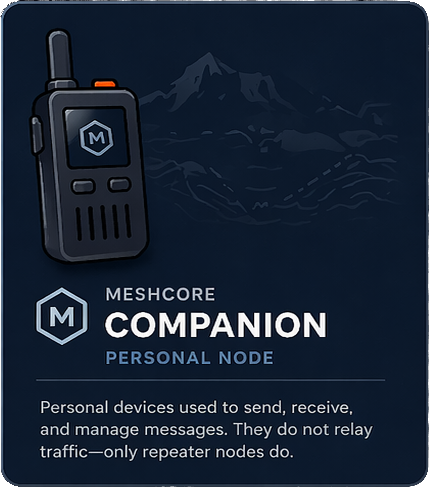
Companion nodes are your personal, portable devices—the way you actually connect to the mesh.


  • Battery-powered or USB-powered
  • Typically paired to your phone over Bluetooth for messaging
  • Some all-in-one devices (like T-Decks) have screens and keyboards./li>
  • Do not route packets
  • Can talk directly to other nearby nodes

Bottom line:


These are endpoints, NOT infrastructure. They rely on repeaters to move traffic across the network.

Repeater
Repeater Node

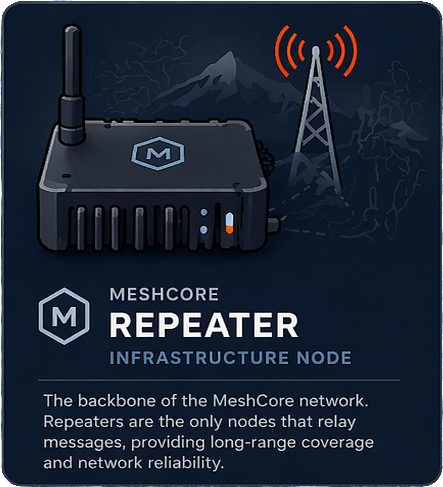
Repeaters are the backbone of the mesh. They route packets across the network and extend coverage.


  • Usually powered by USB or wall adapter (some can run on batteries, but they’re not designed for it)
  • Typically mounted in a fixed location (indoors or outdoors)
  • Do not have Bluetooth or a user interface
  • Route packets between companion nodes and other repeaters

Bottom line:


These ARE the infrastructure. They keep the mesh connected and help it grow.


Learn more about Repeaters

Room Server
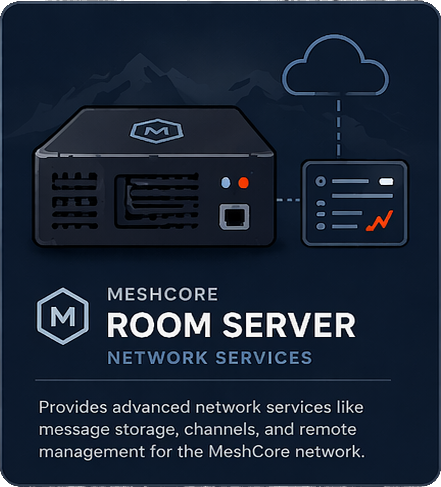
Room Server Node

Room servers act more like a shared message board or lightweight chat server than a traditional node.


  • Store the last 32 messages sent to them
  • When you connect, you pull messages like checking an inbox
  • Technically capable of repeating, but this is discouraged
  • Not full-featured repeaters and shouldn’t be used as such

Best use case:


Store and forward message channel for clients not currently connected to mesh.


Learn more about Room Servers


Install MeshCore Firmware

Flashing firmware is the first step to get your node operational. Follow these steps:

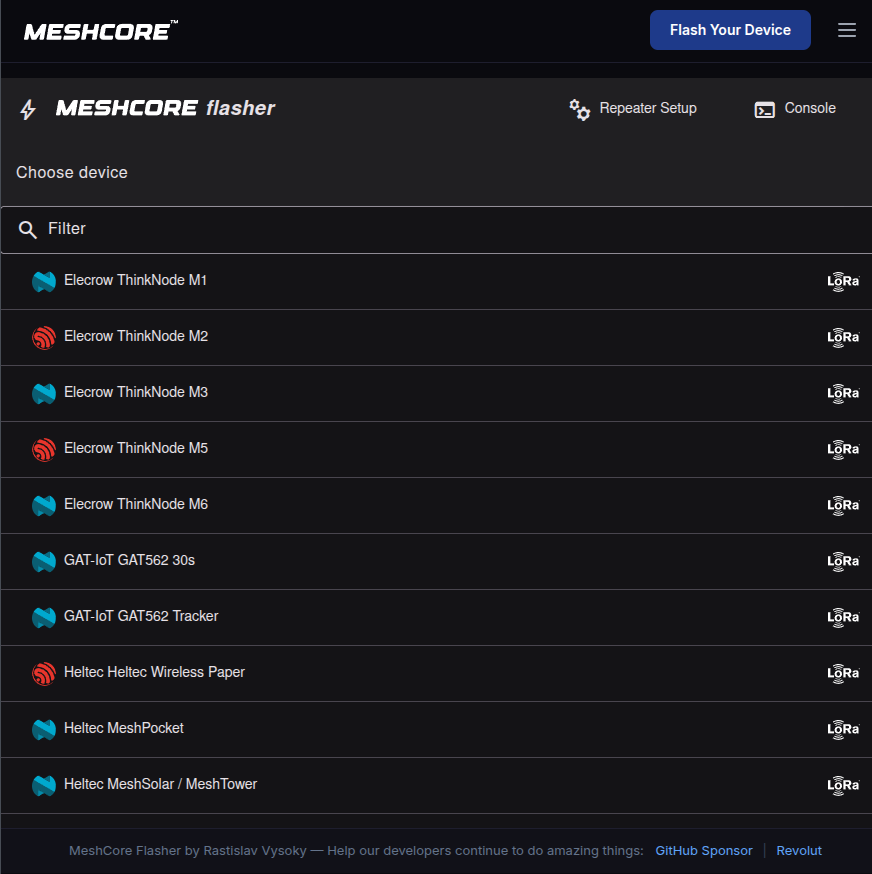
  1. Download the latest MeshCore firmware from meshcore.co.uk.
  2. Connect your device to your computer via USB.
  3. Use the recommended flashing tool:
    • Desktop: MeshCore Web Flasher
  4. Follow the tool instructions to flash the firmware safely.
  5. Verify the device shows correct firmware version after installation.

Tip: Keep your device powered during flashing and do not disconnect until complete.

Flashing Firmware

Connect to Your Node

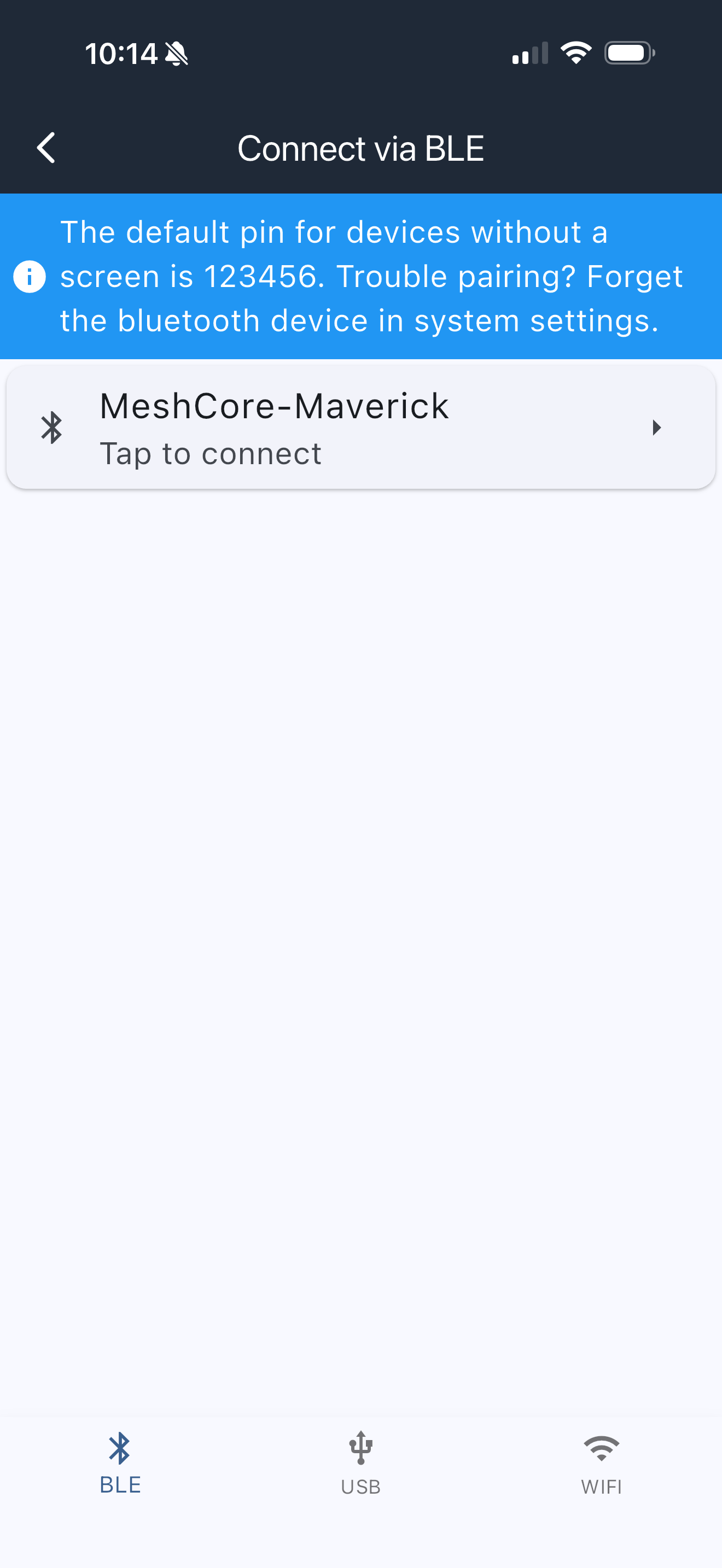
After flashing your MeshCore firmware, you need to connect your node to configure it. The connection options depend on the role you selected during firmware installation:


  • Repeater / Base Station:
    • Connect via USB to a computer for configuration.
    • Network or Bluetooth connection may be limited; role dictates available interfaces.

  • Mobile Node (Bluetooth Companion):
    • Install the MeshCore app from the iOS App Store or Google Play Store.
    • Connect via Bluetooth using the MeshCore app on iOS or Android.
    • USB connection is optional but supported for advanced configuration.

  • USB Companion:
    • Connect via USB to a computer for configuration and messaging.
    • Bluetooth is not supported for this role.

Bluetooth Connection

Set Up Your MeshCore Node

Now that your firmware is installed, it’s time to configure your device.


Start with the basics:


  • Set your node name and description for easy identification on the network.
  • Configure your radio settings (frequency, spreading factor, etc.) to match local network parameters.

Refer to the MeshCore documentation for detailed configuration options and best practices.


MeshCore Wiki

Companion

Repeater

Room Server

Join the STMesh MeshCore Network

Click the button below to explore the STMesh MeshCore network in more detail.


Join Local MeshCore Network